
You're in. Here's how to set it up.
Access is tied to the email address you bought with. One purchase unlocks both the Chrome extension and the Android app, for up to two licence numbers.
About two minutes, and only the first time.
Chrome extension
-
Install it
From the Chrome Web Store. Skip this if you already have it.
-
Sign in with the address you paid with
Click the extension icon, press Start, then choose Continue with Google or Email me a sign-in link. Either opens a sign-in tab on this site and hands you back to the extension.
-
If it doesn't unlock straight away
Press I've paid, check again. Payment and unlocking are two separate steps, and occasionally the second one needs a nudge.
-
Type the form once, then press Start
Licence number and test-centre area are required; see Fine-tune your search for the rest. Keep a tab open on the DVSA booking site: it only searches while that tab is open, and it stops as soon as it alerts you. The status line reads Watching for a slot… while it runs.
Android app
-
Download the APK on your phone
Download it here, or from the Android page. The app is installed directly rather than through the Play Store.
-
Allow the install
Open the downloaded file and allow installing from this source. A Play Protect warning is normal for an app installed outside the Play Store, so tap Install anyway.
-
Sign in with the address you paid with
Open the app, press Start, then either Continue with Google or type your email and choose Email me a sign-in link. The emailed link needs no Google account, but you have to open it on the same phone you asked for it from.
-
Type the form once, then press Start
Leave the app open with the screen on. Android throttles a phone's timers otherwise, so a phone on a desk with the app in front is the setup that works. The app bar reads Watching for a slot… while it runs.
Already booked a test?
It fills in the form for a new booking only, so on the change-booking journey it will not type anything for you. You can still use it to watch for a slot.
-
Go through the DVSA steps yourself
On the DVSA site choose Change your booking, enter your licence number and booking reference, and pick the option to change the test centre. Work through each page by hand until you reach the test-centre search results.
-
Press Start on the results page
Once the list of test centres is on screen, open the extension, or the app on Android, and press Start. It picks up from that page, refreshes it on its own and watches those centres for a slot in your dates. The status line reads Searching for a slot….
Do not press Start earlier in the journey: it has nothing to type on those pages and will just wait. Leave the tab open once it is running, as with a new booking.
Fine-tune your search
The extension popup and the app's home screen use the same settings.
- Driving licence number
- Typed into the booking form for you. One purchase covers two different licence numbers.
- Test-centre area
- One postcode area to search around, for example IG1. Required before it will start.
- Focus centres
- Add specific centres to search only those. Leave it empty to search every centre in the area.
- Ignore centres
- Add centres to skip, even when they have a slot.
- Date range
- The earliest date is today and moves itself on each day. Turn that off to pin it instead. You always set the latest date yourself.
- Time of day
- An earliest and a latest time. A slot outside it is skipped and the search carries on. Leave it at 00:00 to 23:59 to accept any time.
Search timing, meaning how many centres it checks before starting over and how long it waits between sweeps, is tunable in Settings. The defaults suit almost everyone.
While it's watching
The status line tells you what is happening, in these words: Choosing test type…, Entering your details…, Searching for a slot…, No slots yet, retrying in 8s, or, if the booking site needs you, Solve the security check.
Stuck on a security check? The reload icon reloads the page. The clear-cache icon wipes cookies and cached data for the booking site, which usually clears it. If it cannot make progress five times in a row it stops itself and tells you, rather than hammering a stuck session.
A slot outside your time window does not stop the search. It keeps looking for one that fits.
When a slot is found
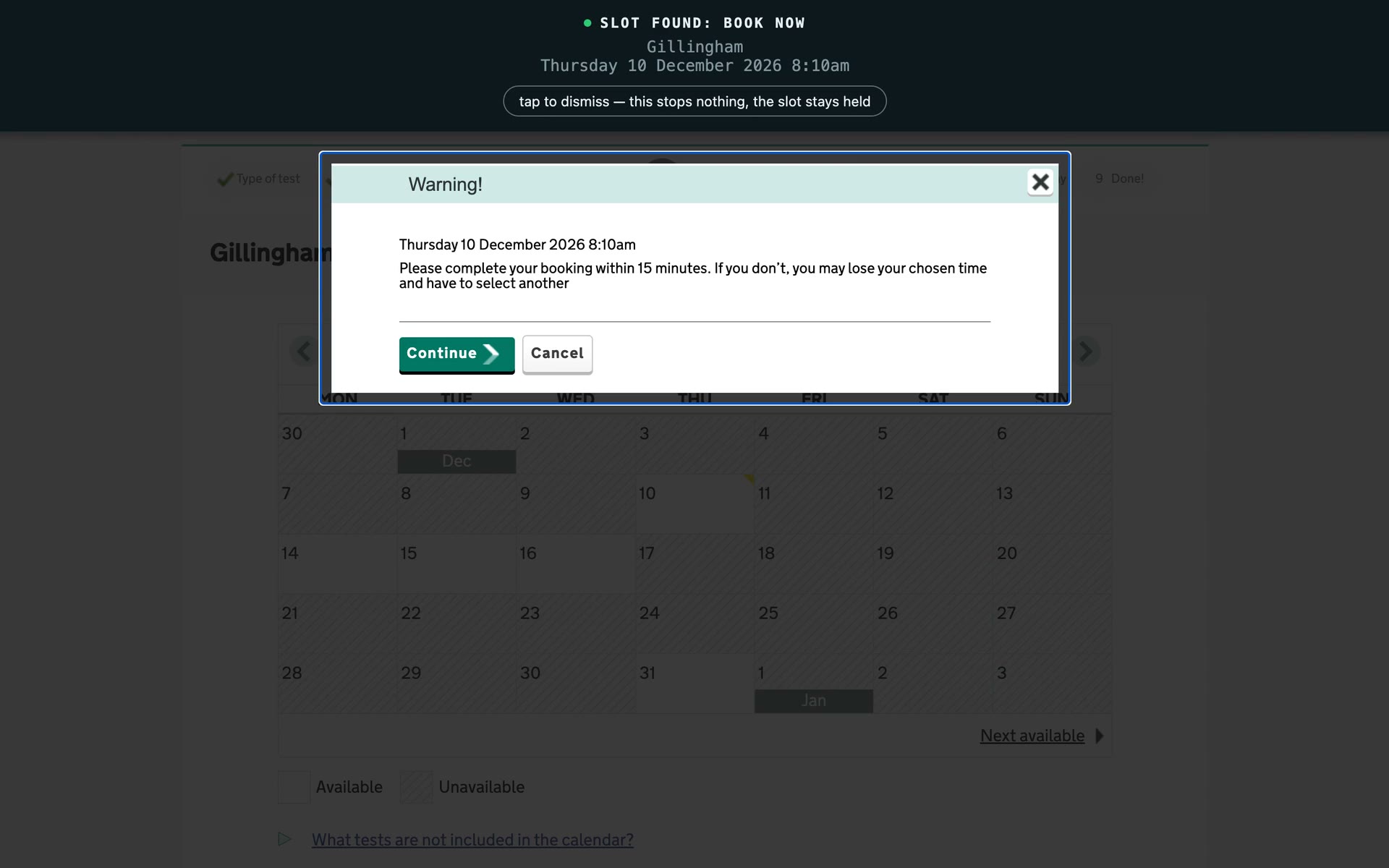
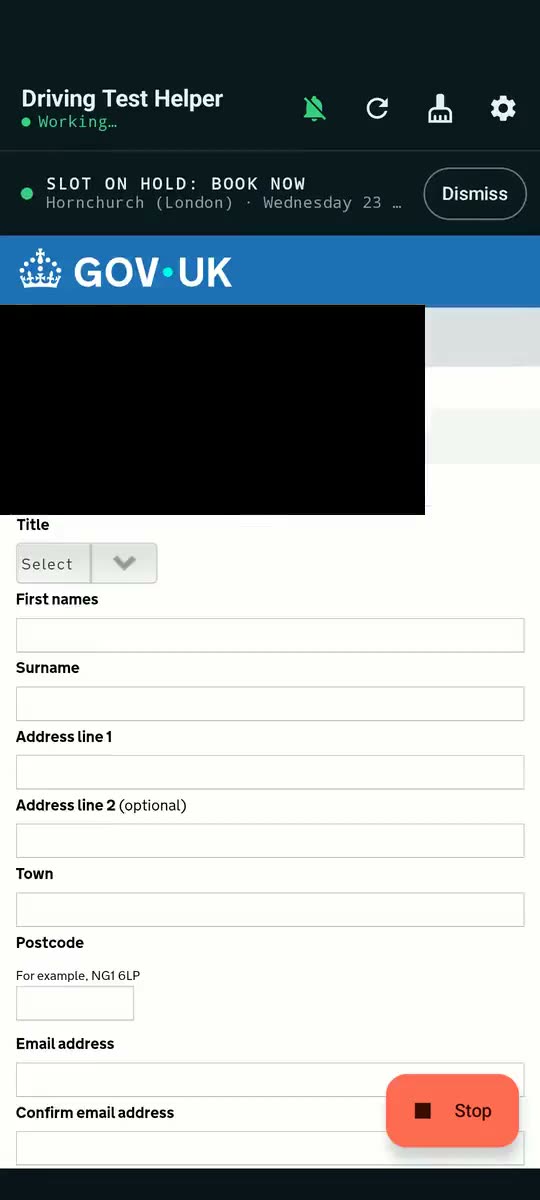
You get a loud alarm with the slot already open on the DVSA page, and the status reads Slot on hold. The silence icon mutes the sound without dismissing the alert.
From there it is yours: check the date, the centre and the time, then submit and pay on the DVSA site as you normally would. The DVSA gives you 15 minutes once a slot is selected, so do not wander off. More on where it stops.
Practise while you wait
Driving Test Simulator lets you drive a mock test on the real roads around your test centre, marked like the DVSA test. Practise for your test
Bought with a different email?
Sign-in has to use the address you entered at checkout. If you used a different one by mistake, email us from the address on your Stripe receipt and we will move the purchase over: helperdrivingtest@gmail.com